Calendar
Appointments and reminders stay in one place. Open a day to see its agenda, use the full-day view when you need more detail, and contact the customer without leaving the appointment.
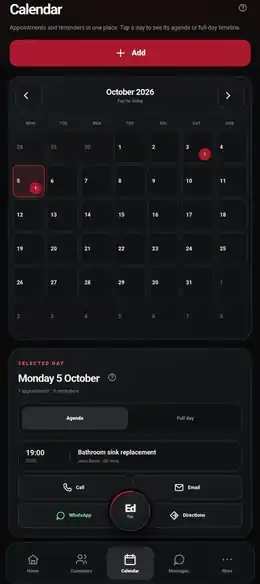
Find an appointment
- Tap Calendar in the bottom navigation.
- Use the arrows to move between months. Tap the month heading to return to today when that option is shown.
- Tap a day to open its Selected day section.
- Use Agenda for a compact list or Full day when you want the full timeline.
Add an appointment
- Tap Add at the top of Calendar, or add the appointment from the relevant customer or job.
- Choose the customer/job, date, time and duration.
- Save the appointment. It will appear on the relevant day and remain linked to the customer/job.
Contact the customer from the diary
When a selected appointment has customer contact details, the Calendar can show quick actions for Call, Email, WhatsApp and Directions. This lets you act from the diary without opening several screens first.
Ask Ed
You can also use Ed for supported appointment actions. Speak naturally, for example “Book John for Monday at 9” or “What have I got on today?”. If a customer or job is unclear, Ed can ask for the missing detail before anything is confirmed.