Customers
Keep each customer's contact details, address and linked work together. You can add and find customers manually, and Ed has current routes for creating, opening and updating customer details.

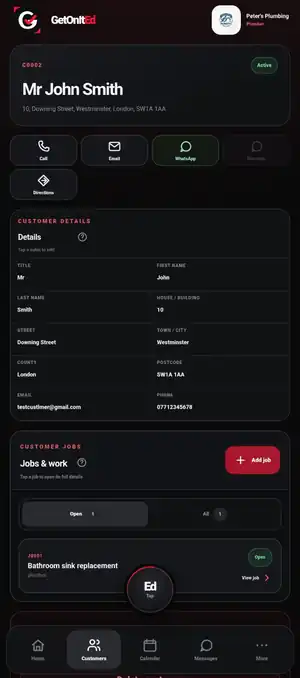
Find and open a customer manually
- Open the Customers area from the bottom navigation. Your profession may use a more specific customer/work label.
- Use the search box to search by customer number, name, address, phone or email.
- Choose Active for current customers or All when you need an older or inactive record.
- Tap the customer card to open their full details and linked jobs.
Customer cards also show their customer number, Active/Inactive status and open-work count. Available quick actions can include call, email, WhatsApp, in-app Message and Directions.
Add a customer manually
- From the customer list, tap Add customer.
- Enter the customer's name and the contact details you have.
- For the address, enter the house/flat/building and postcode, then use Find address. If more than one match is found, choose the correct address.
- If the full address cannot be matched automatically, check the postcode and finish the editable address fields manually.
- Save the customer. GetOnItEd assigns the customer record its customer number.
Manual entry and Ed use the same customer fields and format rules.
Create or find a customer with Ed
Current V2 source contains Ed execution routes for creating a customer, opening a customer and updating customer details. Examples include:
- “Create a new customer.”
- “Find John Smith.”
- “Take me to C0002.”
Speak naturally. If Ed needs an important detail, answer the follow-up question. Check the details Ed has understood before confirming a change.
The current capability tracker records these Ed routes as present in source but still needing device-level proof, so use the manual route if Ed cannot complete a particular request on your installed version.
Update customer details
Open the customer record and edit the relevant detail manually. Ed also has a current execution route for updating customer details, but confirm the proposed change carefully before it is saved.
What Ed does not currently have a verified route for
The current capability tracker does not evidence Ed execution routes for deleting a customer or directly starting customer call, email, WhatsApp or Directions actions. Use the customer screen's manual controls for those actions rather than relying on Ed.
If something goes wrong
- Customer not found: search by part of the name, customer number, address, phone or email, and check All as well as Active.
- Address not found: check the house/building and postcode, then enter the remaining address manually if necessary.
- Customers are still loading: wait a moment before adding a new record.
- Sync needs attention: GetOnItEd can show the device copy rather than making a customer disappear; retry when your connection is available.
- Ed misunderstood a customer: do not confirm the change. Correct the name/number or open the customer manually first.