Home and Ed
Home is your starting point for the working day. You can move around GetOnItEd manually, or tap Ed and speak naturally when the task is supported.
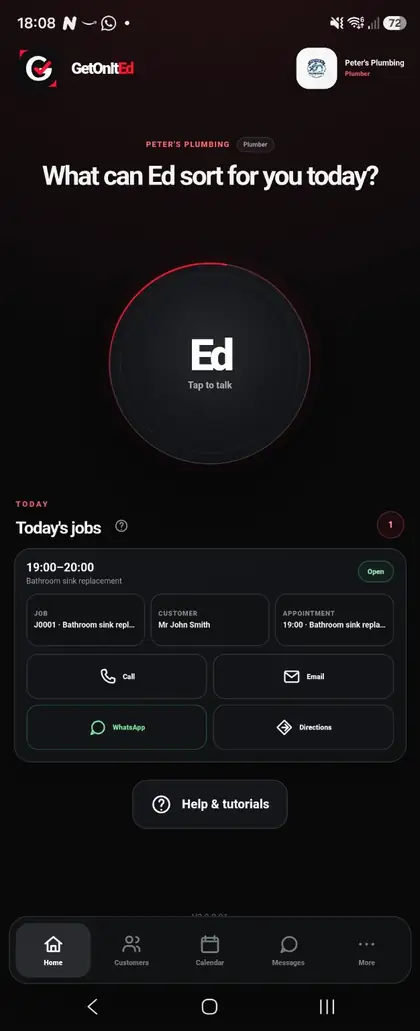
Using Home manually
- Open GetOnItEd. The Home screen shows your business identity and asks What can Ed sort for you today?
- Use the bottom navigation to move between Home, your customer/work area, Calendar and More.
- Use the Home screen's working-day information to get back into the customers, jobs or appointments you need.
- Use Android's normal back action when you want to return from a customer or job detail screen.
Talking to Ed
- From Home, tap the large Ed button labelled Tap to talk.
- Wait for Ed to show that it is listening, then say what you need in normal words.
- If important information is missing, answer Ed's question rather than starting the request again.
- For actions that need confirmation, check what Ed has understood and confirm before the change is made.
Ed also receives useful screen context. When you open Ed from a customer, job or calendar context, GetOnItEd can pass that current context into the conversation instead of making you repeat it unnecessarily.
Things you can ask Ed
The current V2 source has Ed execution routes for a growing range of everyday admin. Examples of useful requests include:
- “Create an appointment for Sarah tomorrow at 10.”
- “Show me today's work.”
- “Take me to customer C0002.”
- “Find Susan Smith.”
These are examples, not special commands you have to memorise. Speak naturally. Some Ed routes exist in the current source but still require device-level verification, so the Help centre only gives detailed task instructions as each capability is checked.
What happens next
For supported actions, Ed either carries out the confirmed task or takes you to the relevant part of GetOnItEd. If a task needs information that Ed does not yet have, Ed can ask for the missing detail. You can always leave Ed and complete the task manually instead.
If Ed does not respond as expected
- It does not look like Ed is listening: close Ed and tap Ed again before speaking.
- Ed asks for a customer or job: give the name or number requested, or open that customer/job manually and try again from there.
- Ed misunderstood an important detail: do not confirm it. Correct the detail first.
- The task is not supported: use the normal buttons and screens in GetOnItEd. A voice route is never required to use the core app.
- Voice connection needs attention: check your internet connection and retry.