Jobs
A job keeps one piece of customer work together. Each job gets a J-number and can hold its status, appointments, notes, profession-specific details and other work records.
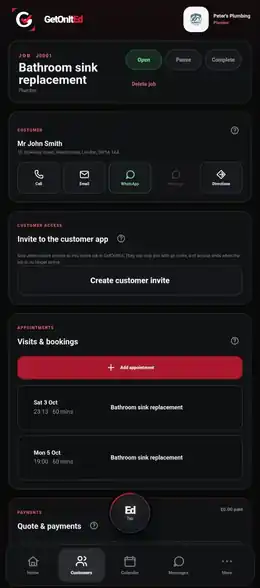
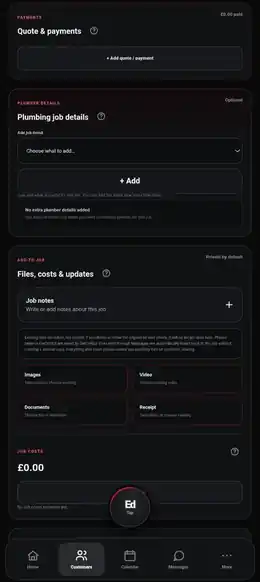
Create a job manually
- Open the customer the work belongs to.
- In Jobs & work (the wording can adapt to your profession), tap Add job.
- Give the job a short, useful name.
- Tap Create job. New jobs start as Open and GetOnItEd allocates the next J-number automatically.
- Tap the new job in the customer's work list to open its full record.
Find and open work
- Open the customer record.
- Use Open for current and paused work, or All to include completed jobs.
- Each job card shows its J-number, title and status.
- Tap the job to open the full record.
Use Ed with jobs
The current V2 source contains Ed execution routes for creating and opening jobs, changing job status, changing a job title, adding a job note and updating supported profession-specific job details.
- “Create a new job for this customer.”
- “Open the latest job for this customer.”
- “Pause this job.”
- “Add a note to this job.”
If you are already inside a job, Ed receives that job as screen context. If more than one job could match, give Ed the J-number or open the intended job first. Check important changes before confirming them.
These routes are present in the current source, while device-level proof is still marked as pending in the capability tracker. Use the manual route if a voice action does not complete on your installed version.
Change the job status
- Open the job.
- Choose Open, Pause or Complete.
- Wait for the change to save. Completed jobs stop counting as open work but remain available under All.
Ed also has a current execution route for status changes and asks for confirmation before making the change.
Add job details
Open the full job record and use the relevant on-screen section. Available detail sections can vary by profession. Notes can be added from the job screen. Ed has a current route for adding job notes and for supported profession-specific fields, but some individual detail controls remain manual where no Ed route is evidenced.
What happens next
Use the full job record as the home for that piece of work. Appointments, quotes, payments, files and customer access are covered in their own Help guides so each set of steps stays short.
If something goes wrong
- Job not visible: open the correct customer and switch from Open to All in case it is complete.
- Jobs are loading: wait for the latest linked records before trying again.
- A job will not save: check it has a useful name and retry. GetOnItEd reports when nothing was added.
- Status will not change: retry the status control. If the timeline does not refresh after a successful change, reopen the job.
- Ed asks which job: do not confirm the wrong one. Give the J-number or open the intended job first.