Messages and customer app access
Keep conversations, photos and files with the right customer and active job, and give customers secure access when you want them involved.
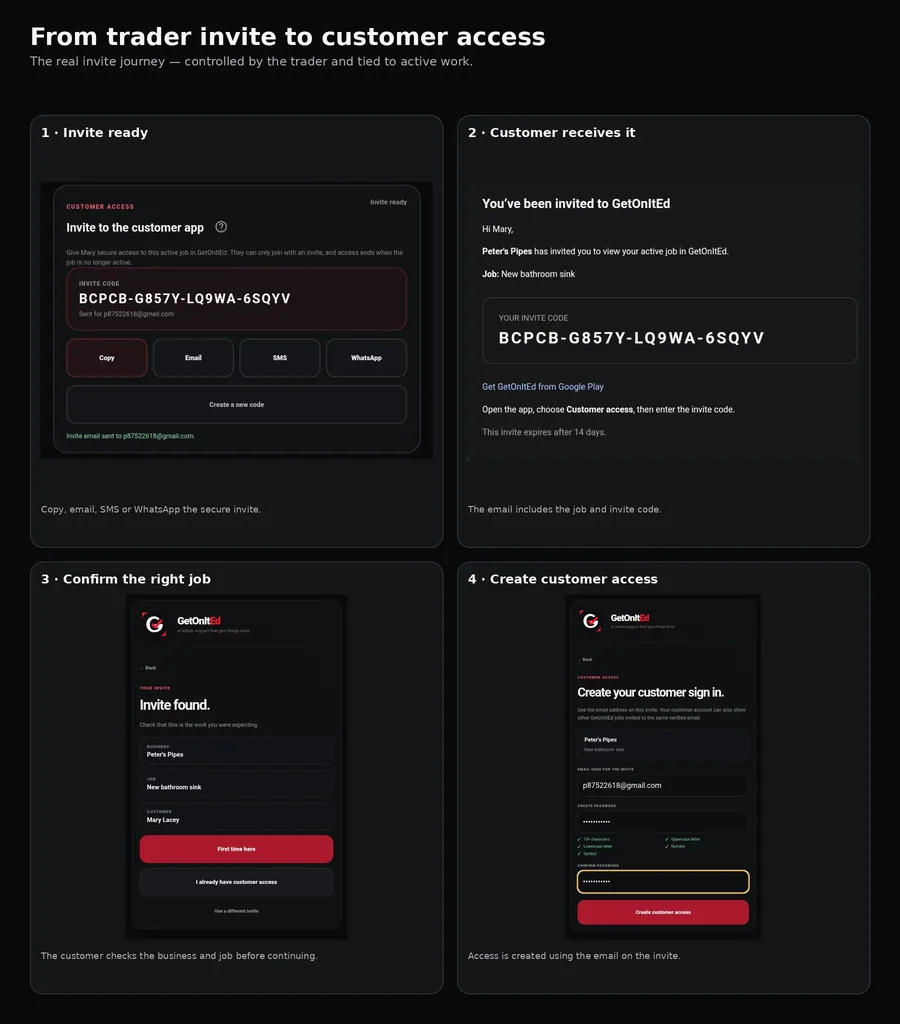
Invite a customer to the customer app
- Open the customer, then open the active job you want to share.
- In Customer access, tap Create customer invite. The customer needs an email address on their customer record before an invite can be created.
- When the invite is ready, GetOnItEd shows the invite code and the email it is for.
- Choose Email, SMS, WhatsApp or Copy. Email can be sent from GetOnItEd; SMS and WhatsApp open the phone app so you still press Send there.
- If you need to replace the code, use Create a new code.
The invite is for that active job and the invite email currently states that the code expires after 14 days.
What the customer does
- Open GetOnItEd and choose Customer access, then I have an invite.
- Enter the invite code and tap Check invite. Spaces and dashes do not matter.
- Check the business, job and customer name shown on Invite found.
- If this is their first GetOnItEd customer account, choose First time here. If they already have customer access, choose I already have customer access and sign in.
- For a first-time account, use the same email address the invite was sent to, create and confirm a password, then tap Create customer access.
- Open the verification email and tap Confirm email. GetOnItEd should reopen automatically. If needed, return to the app and tap I’ve verified my email.
The sign-in email must match the email used for the invite. There is no public customer sign-up without a valid job invite.
Open and use Messages
- Open Messages.
- Tap the conversation you need. Each conversation shows the customer and job reference so you can check you are in the right place.
- Type your message in the message box.
- Press Send.
- Use Open job when you need to return to the linked job record.
Messages are available while customer access is active for the job.
Share a photo or file
- Open the correct conversation.
- Press Photo / file.
- Choose the item you want to share.
- Check the selected filename before sending.
- Add a message if useful, then press Send.
Messages accept images, PDFs, text files and common Word/Excel files. Keep each shared file to 10 MB or smaller. Attaching a photo or file is currently a manual action.
Use Ed for messages
Ed can help you open a customer/job conversation, refresh the conversation list and send a text-only in-app message. Ed uses the current customer or job where possible and asks you to choose when more than one conversation matches.
Examples include “Open my messages.”, “Open the conversation for this job.”, “Open the conversation for John Smith.” and “Send John Smith a message saying I’m on my way.”
Before a text message is sent, Ed reads back the message and asks for confirmation. Ed does not currently attach a photo or file to the message for you; use Photo / file manually for that.
Use Ed for customer access
Ed can also help with creating a secure customer-access invite, copying a ready invite, emailing a ready invite, or opening it in SMS or WhatsApp.
For example, you can ask Ed to create the customer invite for the current job or open the ready invite in WhatsApp. Creating an invite does not send it automatically. Email sending asks for confirmation, while SMS and WhatsApp open the relevant app and you still press Send there.
What happens next
The conversation stays tied to the relevant customer and active job. New messages can refresh into the thread, and shared files remain with that conversation so both sides have the right job context.
If something goes wrong
- No active conversations: check that the customer has accepted access to an active job.
- Invite email does not match: the customer must create or sign in to customer access using the same email address the invite was sent to.
- Invite expired, revoked or already used: create a new customer invite from the active job.
- Conversation will not load: check your connection and use Try again where shown.
- Wrong conversation: check the customer and job references at the top before sending.
- File will not attach: keep it to 10 MB or smaller and use a supported file type.
- Ed finds more than one conversation: choose the conversation by number, customer or job when Ed asks.
- Ed cannot complete the action: use the manual Messages or customer-access controls instead.