Payments and payment chasing
Record money due and paid, and follow up outstanding payments while keeping everything linked to the right job.
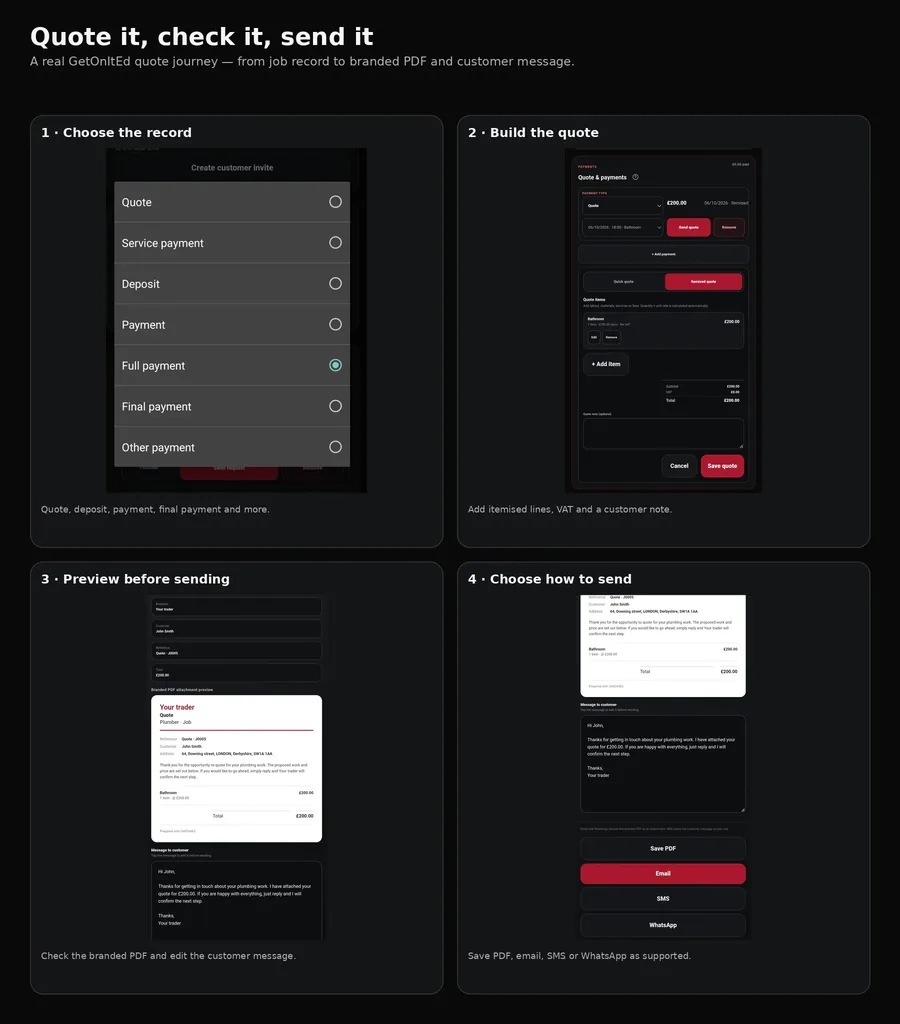
Add a payment manually
- Open the customer and correct job.
- Go to Quote & payments.
- Add a row and choose Payment type: service, deposit, payment, full payment, final payment or other.
- Enter the amount and, if useful, link an appointment.
- Check the row before sending anything.
Send and chase a payment
- Find the payment row.
- For a new planned payment, use its send button to prepare the payment request.
- After it is sent, use Actions for the next follow-up.
- The journey moves through Send reminder, Send chaser, then Send final reminder.
- Review the prepared message or document before sending.
The row can show Planned, Sent, Reminder sent, Chaser sent, Final sent, Due or Paid.
Mark money as paid
- Open the payment row.
- Choose Actions.
- Select Mark paid.
- Check the row shows Paid and the paid total has updated.
Use Ed for payments
Open the relevant job first. Ed can help with adding and updating payment items, changing payment type or status, marking paid, removing a payment, and opening payment request, reminder, chaser and final-reminder composers.
Examples include “Add a £200 deposit.”, “Mark the deposit as paid.”, “Send a payment reminder.”, “Send a chaser.” and “Send the final payment reminder.”
Financial changes require confirmation. Removing a payment requires stronger confirmation. Follow-up actions open the composer rather than silently sending. Use the manual controls if a voice action does not complete on your installed version.
Change or remove a payment
Use Payment type to change an unpaid record. You can edit its amount and appointment link from the row. Use Remove to delete a payment record; GetOnItEd asks for confirmation.
What happens next
Payments stay attached to the job. The payment journey records which customer-facing stages have been sent so the next appropriate follow-up can be offered.
If something goes wrong
- Wrong payment: check the customer and job before changing financial information.
- Wrong amount: edit it before the next send.
- No reminder or chaser: only the appropriate next stage is offered.
- Payment arrived: choose Mark paid.
- Ed cannot identify it: open the correct job, identify the payment by type or amount and try again, or use the manual controls.