Quotes and itemised quotes
Create a simple price quickly or build a detailed quote with separate labour, materials, services and other lines. Quotes stay with the job so the customer, work and money remain connected.
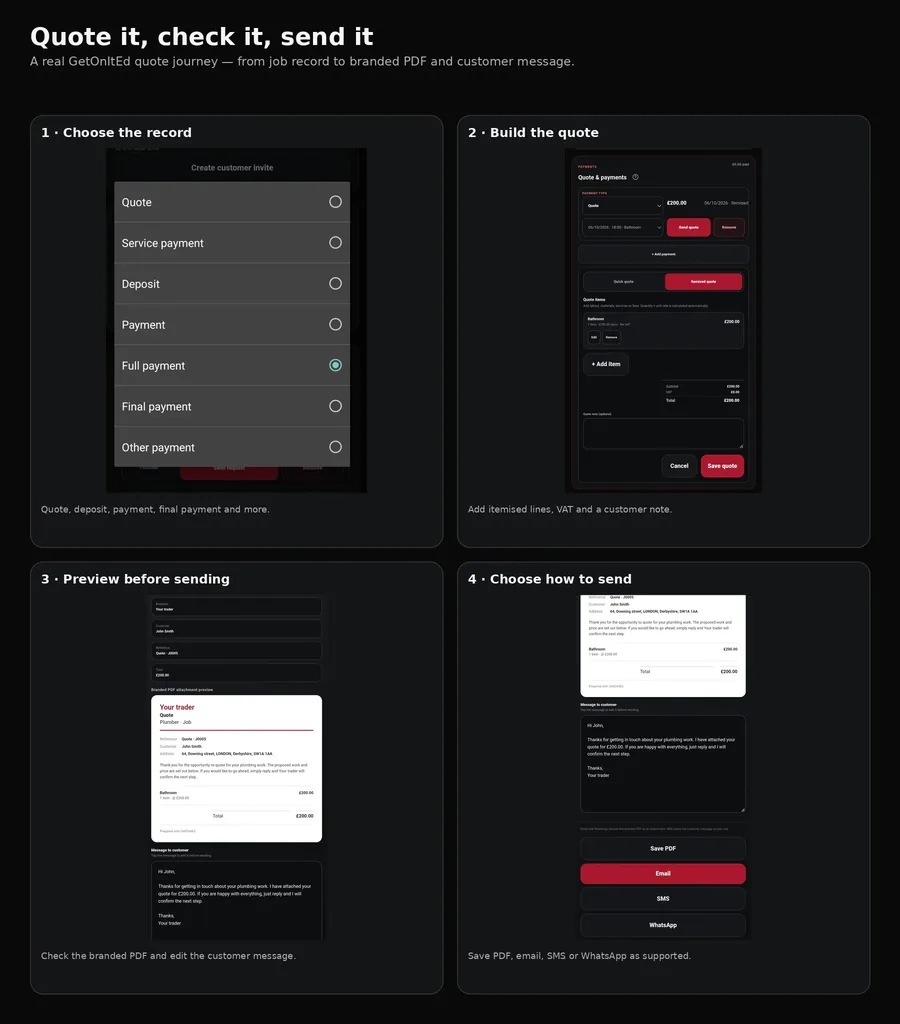
Choose quick or itemised
- Open the customer and then the job you are quoting for.
- Go to the job's quote/payment area and choose Quote.
- Use a quick quote for one overall amount and description.
- Use an itemised quote when the customer should see how the price is made up.
An existing quick quote can be converted into an itemised breakdown while keeping its current value as the first line.
Create a quick quote manually
- Enter a quote amount greater than £0.
- Add a useful description of the work.
- If your business is VAT registered, check the VAT rate.
- Choose any payment methods/details you want included where offered.
- Save the quote. A new or financially changed quote returns to Draft so you can check it.
Build an itemised quote manually
- Choose the itemised/breakdown option.
- Add at least one priced item, including type, description, quantity, unit and unit price.
- Choose the VAT rate for each line where your business is VAT registered.
- Repeat for labour, materials, services, fees or other items.
- Use a suitable saved price where available instead of typing the same details again.
- Check subtotal, VAT and total, then save.
An itemised quote needs at least one priced line and a total greater than £0.
Use Ed for quotes
Open the relevant job first. Ed can help with saving and changing quick quotes, changing quote status, creating or converting itemised quotes, adding/changing/removing quote lines, changing VAT and using saved prices.
Examples include “Create a quote for £500.”, “Make this an itemised quote.”, “Add two hours of labour at £45 an hour.”, “Add my saved call-out price.”, “Change the VAT to 20%.” and “Mark this quote as accepted.”
Ed support can vary with your installed version. Use the manual controls if a voice request does not complete, and check important changes before confirming.
Preview and send your quote
Status can be Draft, Sent, Accepted or Declined. Changing status records the state in GetOnItEd; it does not itself send an email, SMS or WhatsApp message. Use the appropriate share/send control to actually send the quote.
What still needs the manual route
Ed support can vary with your installed version. Use the manual controls if a voice request does not complete, and check important changes before confirming.
If something goes wrong
- Itemised quote will not save: make sure it has at least one priced item and a total greater than £0.
- VAT looks wrong: check the rate on the quote or each line before saving.
- Ed asks you to open a job: open the correct job first and ask again.
- A quote already exists: change the existing quote rather than creating another.
- Itemised total needs changing: change its individual lines.
- Saved price not found: choose a current saved price for the profession or enter the line manually.